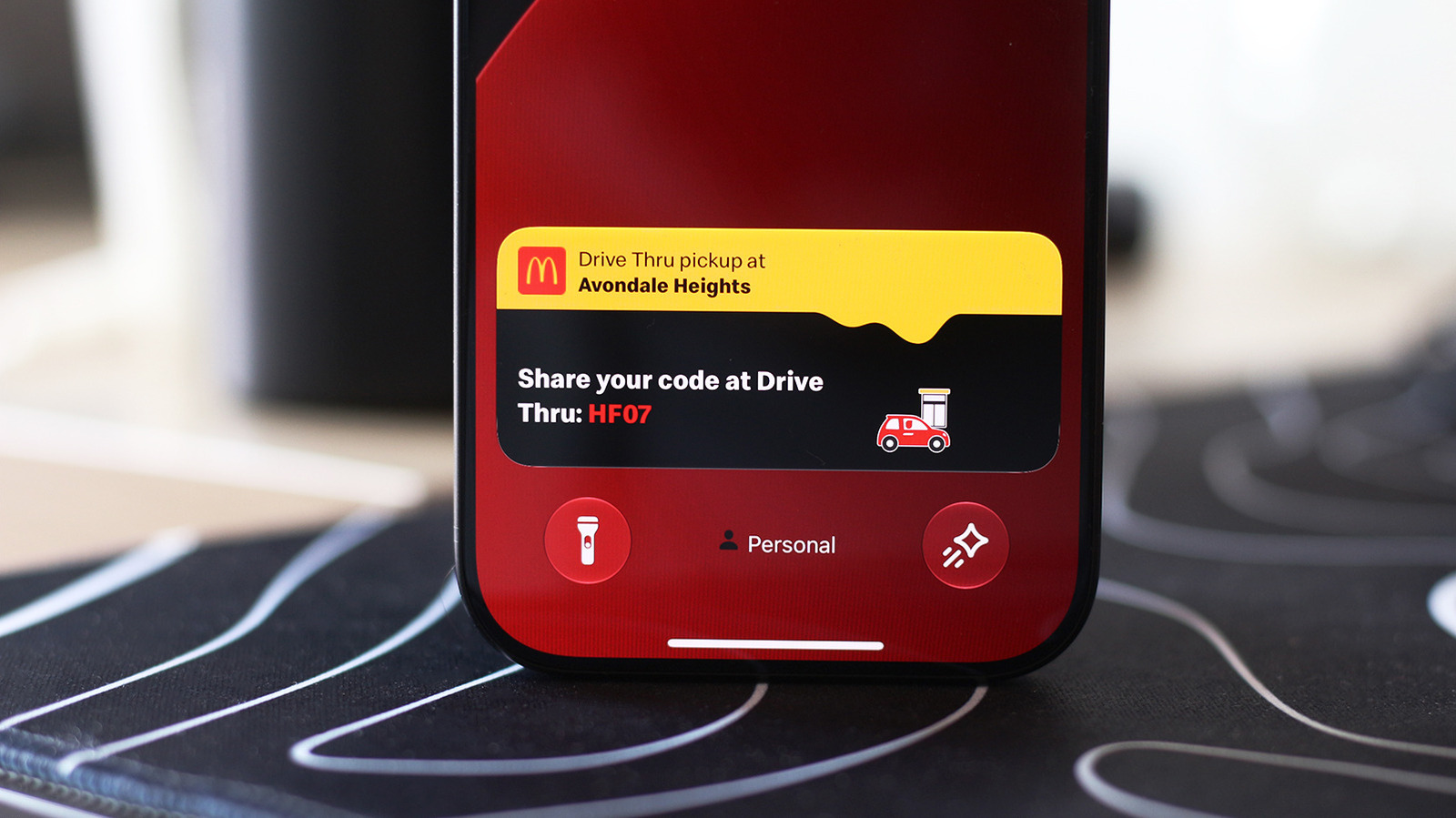
Apple Live Activities Now on iPhone and CarPlay
Apple Live Activities, a feature that surfaced with iOS 16, has expanded to CarPlay dashboards and the lock screen in the latest iOS update. The change lets users keep real-time updates visible without opening an app.
How Live Activities Work on the iPhone
Live Activities are lightweight widgets that run in the background and push updates to the Dynamic Island. They display timers, navigation, music playback, sports scores, and third-party data such as food delivery or flight status. The system treats them as separate from standard notifications, so they can continue to update even when the phone is locked.
Enabling and Disabling
By default, Live Activities are enabled for all apps that support them. If an app’s updates are missing, the user can verify the setting in Settings > Apps. Each app lists a Live Activities slider that can be toggled on or off. The article notes that notifications for the app should also be enabled if updates are not appearing.
Lock-Screen Visibility
Live Activities appear on the lock screen when the phone is not in use. To ensure visibility, navigate to Settings > Face ID & Passcode, confirm the passcode, and enable Live Activities under the Allow Access When Locked section.
Live Activities on CarPlay
CarPlay extends the iPhone’s notification system to the vehicle’s infotainment display. Live Activities from the phone are automatically rendered in the CarPlay Dashboard, the split-screen area to the left of the app list. If an app occupies the full screen, Live Activities surface as notifications at the bottom of the display.
Turning the Feature Off
Users who find Live Activities distracting can disable them in CarPlay Settings. The toggle for Live Activities and the Suggestions in CarPlay (or Suggestions in Dashboard) must be turned on for the feature to function. Turning off Driving Focus can also resolve visibility issues.
Widgets and Customization
CarPlay offers widgets in the leftmost section of the Dashboard. These provide quick controls and information from apps without launching them. The article suggests exploring the Settings app for additional customization options.
Technical Context
The Dynamic Island, introduced with the iPhone 14 Pro, repurposes the pill-shaped cutout that houses the front camera and Face ID sensors. By turning the surrounding area into an interactive display, Apple mitigates the design constraint of a large notch. Live Activities leverage this space to present continuous data streams.
The feature relies on iOS’s background execution policies. Apps declare support for Live Activities in their Info.plist, and the system schedules updates through the Notification Service Extension. Because Live Activities are separate from standard notifications, they can bypass the usual rate limits that apply to push notifications.
User Experience Implications
The expansion to CarPlay and lock screens means users can monitor deliveries, flight status, or navigation without pulling out the phone. However, the ability to toggle visibility per app and per device suggests Apple is mindful of notification fatigue and privacy concerns. The article notes that disabling Live Activities for noisy apps is possible, indicating a user-centric approach to persistent notifications.
What’s Next?
Apple has not announced any changes to the underlying API or additional hardware support. The current implementation relies on existing iOS notification infrastructure and the Dynamic Island display. Future iOS releases may refine the interaction model or introduce new types of Live Activities, but no concrete roadmap has been released.
More from our coverage
For readers interested in how Apple’s hardware updates affect software features, see the discussion on the Apple Watch random restart fix: watchOS 27.0.1 resolves Series 12 and Ultra 4 reboots.
Related coverage
- Ultrahuman Rolls Out Ultrahuman Heart Rhythm Scans Through FibriCheck Partnership
- Okta-Led Alliance Proposes AI Agent Kill Switch to Secure Businesses
- Meta launches camera-free Ray-Ban Meta Audio glasses