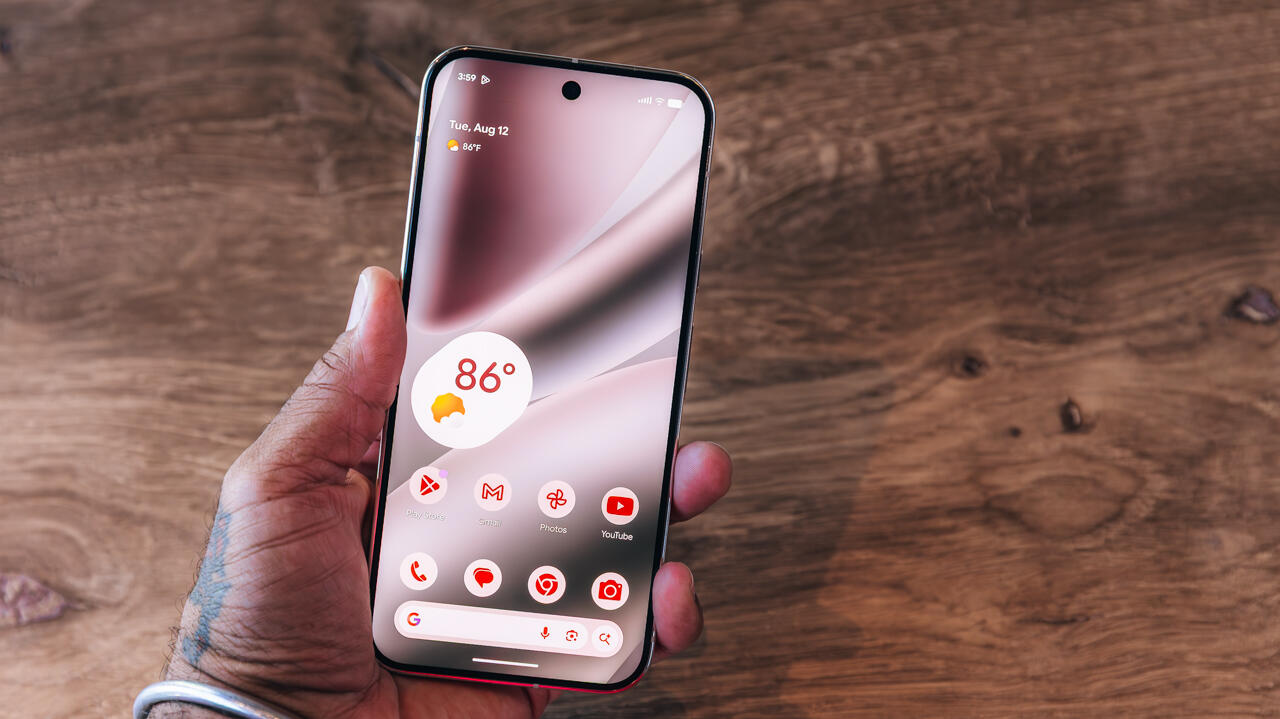
Android 17 app bubbles let users pin up to five app icons so they stay on top of the screen, regardless of what else is running. The feature, released with the latest Android 17 update on Google Pixel phones, replaces the older chat-head style overlay with a more streamlined floating button.
What Bubbles Do
When an app is bubbled, its icon shrinks to a small, floating button that remains above other content. The bubble can be dragged along the left or right edge of the screen, but it cannot be placed in the middle of the display. The icon stays visible while you switch between apps or scroll through content, allowing a quick tap to return to the original app.
How to Enable Bubbles on Pixel
- Open the home screen or app drawer and locate the app you want to bubble.
- Long-press the app icon until a context menu appears.
- Tap the Bubble option.
- Drag the resulting icon to the left or right side of the screen.
- Repeat for up to five apps.
The bubble icon remains on top of everything else, but the apps themselves do not run in the background; they simply stay reachable.
Samsung’s Parallel Feature
Samsung offers a similar capability called Smart Pop-Up View. To use it:
- Open Settings → Notification Settings → Advanced settings → Floating Notifications.
- Enable Smart Pop-Up View.
- Select the apps you want to prioritize.
Unlike Pixel’s bubble, Smart Pop-Up View can be enabled for any notification-heavy app, allowing quick replies without leaving the current screen.
Technical Context
Android 17’s bubble implementation relies on the existing overlay framework that powers chat heads and floating widgets. The system allocates a dedicated window layer for each bubble, ensuring it renders above other app windows. The overlay is lightweight; it does not consume significant CPU or memory, as the underlying app remains in its normal state.
User Experience Considerations
Because bubbles are confined to screen edges, they can interfere with gesture navigation or edge-based shortcuts. Users who rely on edge-swipe gestures may find the bubble obstructing the gesture area. Additionally, the bubble icon does not provide a live preview of the app’s state; tapping it launches the app normally.
Market Implications
Google’s decision to launch the feature on Pixel first signals a cautious rollout strategy. By limiting the initial audience, Google can gather usage metrics and refine the UI before exposing the feature to a broader ecosystem. Samsung’s earlier adoption of a similar feature suggests that the concept has proven useful for manufacturers seeking to enhance multitasking.
What to Watch Next
If the bubble feature proves popular, Google may lift the Pixel-only restriction and expose the API to third-party developers. That would enable custom bubble widgets for messaging, navigation, or productivity apps. However, the overlay framework also raises privacy concerns: bubbles can display app icons without the user’s explicit permission, potentially revealing which apps are in use. Future Android releases may add a consent prompt or a system-wide toggle to control bubble visibility.
Related coverage
- Samsung Tizen Update Policy Extends Smart TV Support to Seven Years
- Open-Weight Models Face Cyber-Attack Claims Amid Debate on Democratization
- Google privacy policy now permits Gmail data to feed ad targeting via Personal Intelligence