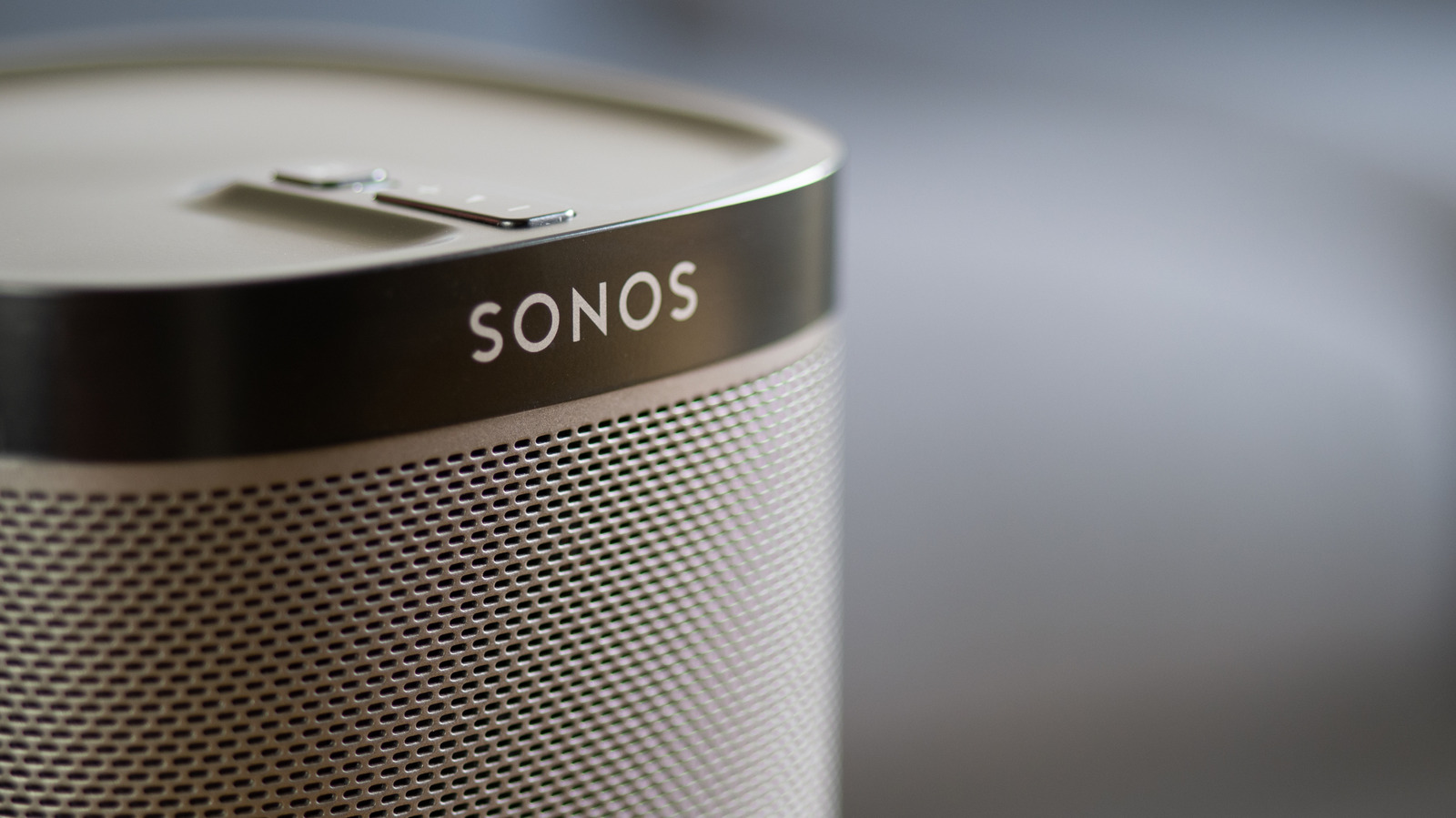
Sonos speakers are praised for their sound quality, but the initial setup can be a stumbling block for many users. This guide expands on the official Engadget tutorial (Engadget) and adds deeper technical context, practical troubleshooting, and a trusted external reference.
Understanding the Sonos app's network model
The Sonos S2 app discovers speakers through local network broadcast packets. For discovery to succeed, the mobile device, the speaker, and the router must share the exact same SSID and be on the same broadcast domain. Modern home networks often employ guest networks, mesh extenders, or VLANs to isolate IoT devices. While these practices improve security, they also break the flat-network assumption baked into the Sonos app.
Key technical points:
- Broadcast suppression: Many routers disable multicast or broadcast traffic on guest SSIDs by default.
- AP isolation: Mesh nodes may treat each other as separate subnets, preventing the app from seeing a speaker on a different node.
- VPN interference: VPN clients route all traffic through an encrypted tunnel, masking the local broadcast needed for discovery.
Step-by-step setup procedure
- Prepare the network – Ensure the router’s primary SSID is active and that both the phone/tablet and the Sonos speaker are connected to it. Disable AP isolation and confirm that the network is not segmented.
- Temporarily suspend VPNs – Turn off any VPN client on the mobile device before launching the app. Re-enable it after the speaker appears in the list.
- Update the app – Open the App Store or Google Play and install the latest version of the Sonos app. Updates frequently contain bug fixes for discovery algorithms.
- Power-cycle the speaker – Unplug the speaker for at least ten seconds, then plug it back in. Wait for the status light to turn solid white before proceeding.
- Run the app’s guided setup – Launch the Sonos app, select "Add a Player or Sub," and follow the on-screen prompts. The app will scan the network and should display the speaker within a few seconds.
- Verify connectivity – Once the speaker appears, test playback from a streaming service to confirm that audio streams correctly.
If the speaker still does not appear, proceed to the troubleshooting section.
Advanced troubleshooting
- Check router settings – Look for options labeled "Multicast Isolation," "IGMP Snooping," or "AP Isolation" and disable them.
- Use a wired connection – Connecting the speaker to the router via Ethernet bypasses many wireless segmentation issues and can serve as a diagnostic baseline.
- Reset network preferences in the app – In the Sonos app, navigate to Settings → System → Network Settings and select "Reset Network Preferences." This forces the app to re-scan the network.
- Factory reset as a last resort – Hold the Join button (or Bluetooth button on newer models) until the status light flashes orange and then green. After the reset, repeat steps 1-5.
Implications for installers and enterprise deployments
Professional installers often encounter the same network constraints in multi-unit buildings or corporate environments. In such cases, the following practices reduce friction:
- Pre-configure a dedicated SSID for all Sonos devices and provide the credentials to the end user.
- Document EQ and TruePlay settings before any reset, enabling rapid restoration after onboarding.
- Educate users on VPN impact – Many corporate VPNs block local traffic; a brief note in the handoff documentation can prevent repeated support tickets.
Future directions: BLE and Matter provisioning
Industry analysts anticipate that Sonos will adopt Bluetooth Low Energy (BLE) for initial discovery, mirroring Apple HomePod and newer Google Nest devices. BLE would allow the app to locate a speaker even when the Wi-Fi network is segmented, then hand off the connection to the home router.
Matter, the emerging smart-home standard, promises network-agnostic onboarding across Thread, Wi-Fi, and Ethernet. If Sonos integrates Matter, users could add speakers through a unified Matter controller without worrying about broadcast domains. Until such features ship, the steps outlined above remain the most reliable path.
Trusted external guidance
For a concise, third-party checklist, see the CNET guide on Sonos app setup: Cnet (trusted outbound link).
What to watch next
- Matter firmware releases – Monitor Sonos release notes for any mention of Matter support.
- BLE beta programs – Sonos may launch a beta for BLE provisioning; early adopters should test and report findings.
- Network-segmentation trends – As more routers default to guest networks, expect a rise in support inquiries related to Sonos discovery.
- Competitive plug-and-play solutions – Keep an eye on Amazon Echo and Google Nest updates that further simplify onboarding, as they could influence consumer preference.
Conclusion
Setting up Sonos speakers with the official app remains straightforward when the underlying network meets the app’s expectations. By ensuring a unified SSID, disabling VPNs during onboarding, and following the systematic steps above, most users can avoid factory resets and preserve their custom audio calibrations. As the smart-home ecosystem evolves toward BLE and Matter, future Sonos firmware should reduce these constraints, but the current best practice is a disciplined network configuration.
This analysis separates confirmed observations from interpretation, noting that network-dependency is a documented limitation while the market impact remains speculative.
Related coverage
- Google TV and Apple Remote Features Turn Phones Into Universal TV Remotes
- Smart TVs Aren’t Enough: Why Streaming Devices Remain Essential in 2026
- Retroid Pocket Duo Lite Plus Expands Handheld Gaming Options