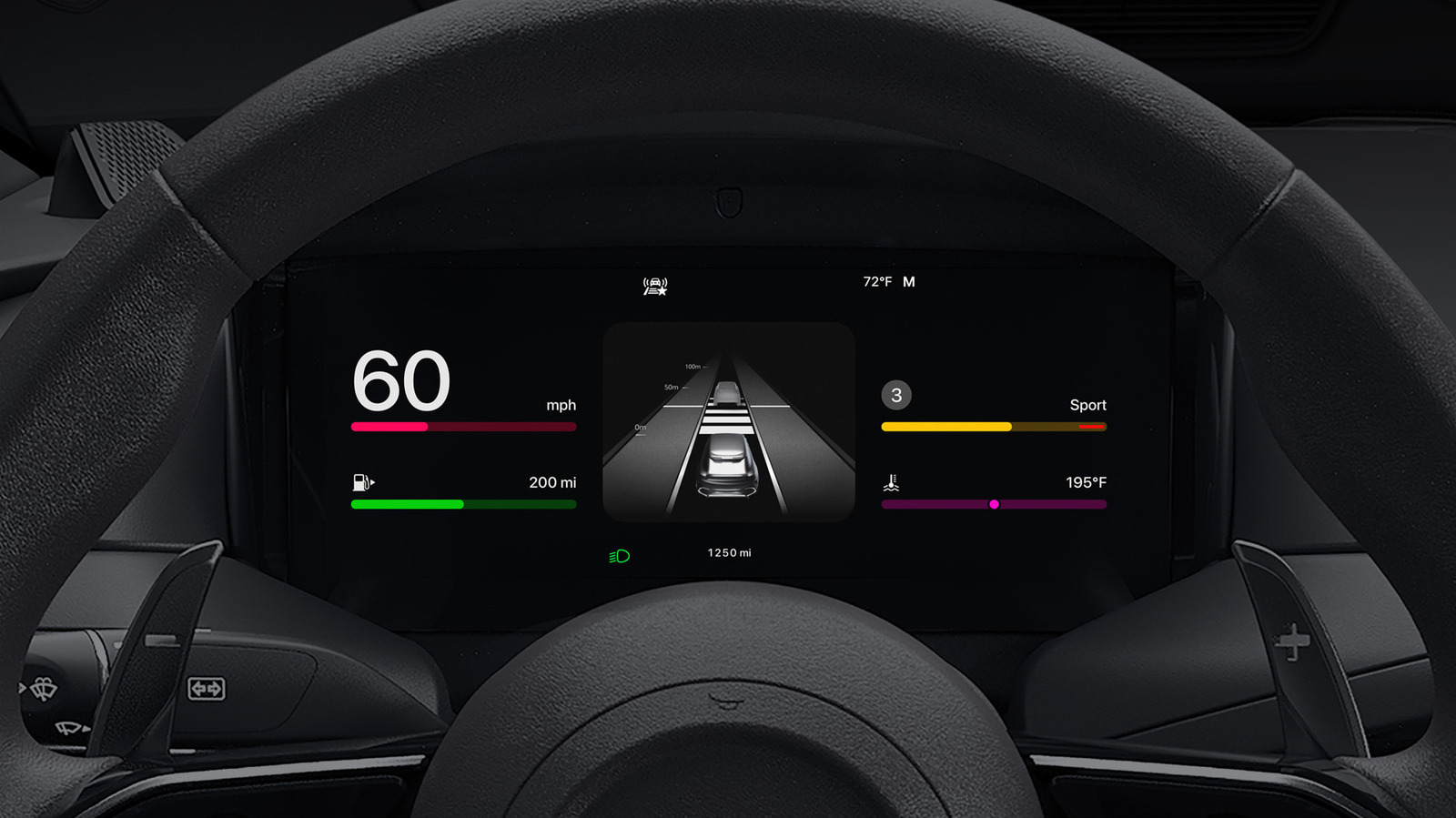
Apple CarPlay customization has become more powerful with iOS 27, offering drivers a suite of settings that improve safety and convenience. The Engadget guide published on September 22, 2026 outlines how these updates work and why they matter for everyday commuters and long-haul drivers alike. By leveraging the new widget system, appearance options, and Driving Focus integration, users can tailor the CarPlay interface to match their personal workflow while staying compliant with distraction-reduction guidelines.
How to reorder apps and set custom icons for Apple CarPlay customization
Navigate to Settings → General → CarPlay, select your vehicle, and open the Apps submenu. A drag-and-drop grid lets you prioritize navigation, messaging, and media apps. Red minus and green plus icons add or remove items, mirroring iOS app management. Fewer icons on the first screen reduce visual clutter, which is critical for quick glances while driving.
Setting up CarPlay widgets and enabling Smart Rotate
iOS 27 expands the widget catalog introduced in iOS 26. In Settings → CarPlay → Widgets, choose from weather, calendar, clock, and traffic widgets. Activating Smart Rotate lets the system evaluate contextual cues—time of day, location, and usage patterns—to display the most relevant widget automatically. This reduces manual interaction and keeps essential information front-and-center.
Adjusting brightness, themes, and wallpapers for better visibility
Under Settings → Appearance, select Automatic to sync screen brightness with ambient lighting, or choose Light, Dark, or Clear modes manually. The new Wallpaper selector lets you apply a personalized background directly from the CarPlay menu. Icon color palettes (Default, Dark, Clear) further improve contrast for low-light conditions, enhancing readability without distracting the driver.
Enhancing voice interaction with Siri and Voice Control
Siri remains the primary voice assistant on CarPlay. Users can invoke it with “Hey Siri” or the steering-wheel button. The added Voice Control option (Settings → Accessibility → Voice Control) continuously listens for a broader command set, including swipe gestures and element selection. This hands-free capability aligns with NHTSA recommendations to minimize manual input while driving.
Using Driving Focus to limit notifications on CarPlay
Driving Focus, part of iOS’s Focus ecosystem, now activates directly on CarPlay. Enable it in Settings → Focus → Driving on the iPhone and link it to CarPlay. The profile suppresses non-essential notifications while allowing priority contacts and repeated calls, reducing the risk of distraction without missing critical alerts.
Choosing wired vs. wireless connections and managing battery life
CarPlay supports both wireless and wired links. Wireless connections eliminate cables but do not charge the iPhone unless the vehicle includes a wireless charging pad. For extended trips, a wired connection ensures continuous power and stable data transfer, preserving battery health.
Automating CarPlay actions with Shortcuts
The Shortcuts app now includes CarPlay-specific triggers. Create automations that launch navigation to a frequent destination when CarPlay connects, or mute media playback during incoming calls. These scripts run locally on the iPhone, ensuring low latency and preserving privacy.
Market impact and competitive landscape
Apple’s incremental CarPlay upgrades keep the platform competitive against Android Auto and proprietary infotainment systems. By focusing on user-level configurability, Apple leverages its software ecosystem without requiring hardware changes, appealing to consumers who prefer a consistent iOS experience across devices.
Security considerations for Apple CarPlay customization
Continuous Voice Control introduces a potential attack surface for spoofed commands. Researchers have demonstrated that adversarial audio can trigger unintended actions in voice assistants. Apple’s sandboxing and end-to-end encryption mitigate many risks, but users should remain vigilant about granting microphone access and keep iOS updated.
What to watch next in CarPlay development
Future iOS releases may add augmented-reality navigation overlays and deeper API integration for third-party developers. Monitoring upcoming WWDC sessions will reveal how Apple plans to expand CarPlay’s capabilities while addressing regulatory concerns around in-car data privacy.
Internal resources
For a step-by-step walkthrough of Apple CarPlay customization, see our CarPlay customization guide.
Conclusion
Apple CarPlay customization in iOS 27 provides practical tools that let drivers fine-tune layout, visual presentation, and voice interaction. By anchoring changes in the iPhone’s existing settings, Apple avoids the need for vehicle-level firmware updates while delivering tangible safety and convenience benefits. Ongoing attention to privacy and security will be essential as the platform continues to evolve.
Related coverage
- Google launches Googlebooks laptops that sync tightly with Android phones
- Apple Mac Studio M5 Ultra price: Premium Power Meets Premium Cost
- Smartphone Data Consumption Peaks with Video Streaming and Calls