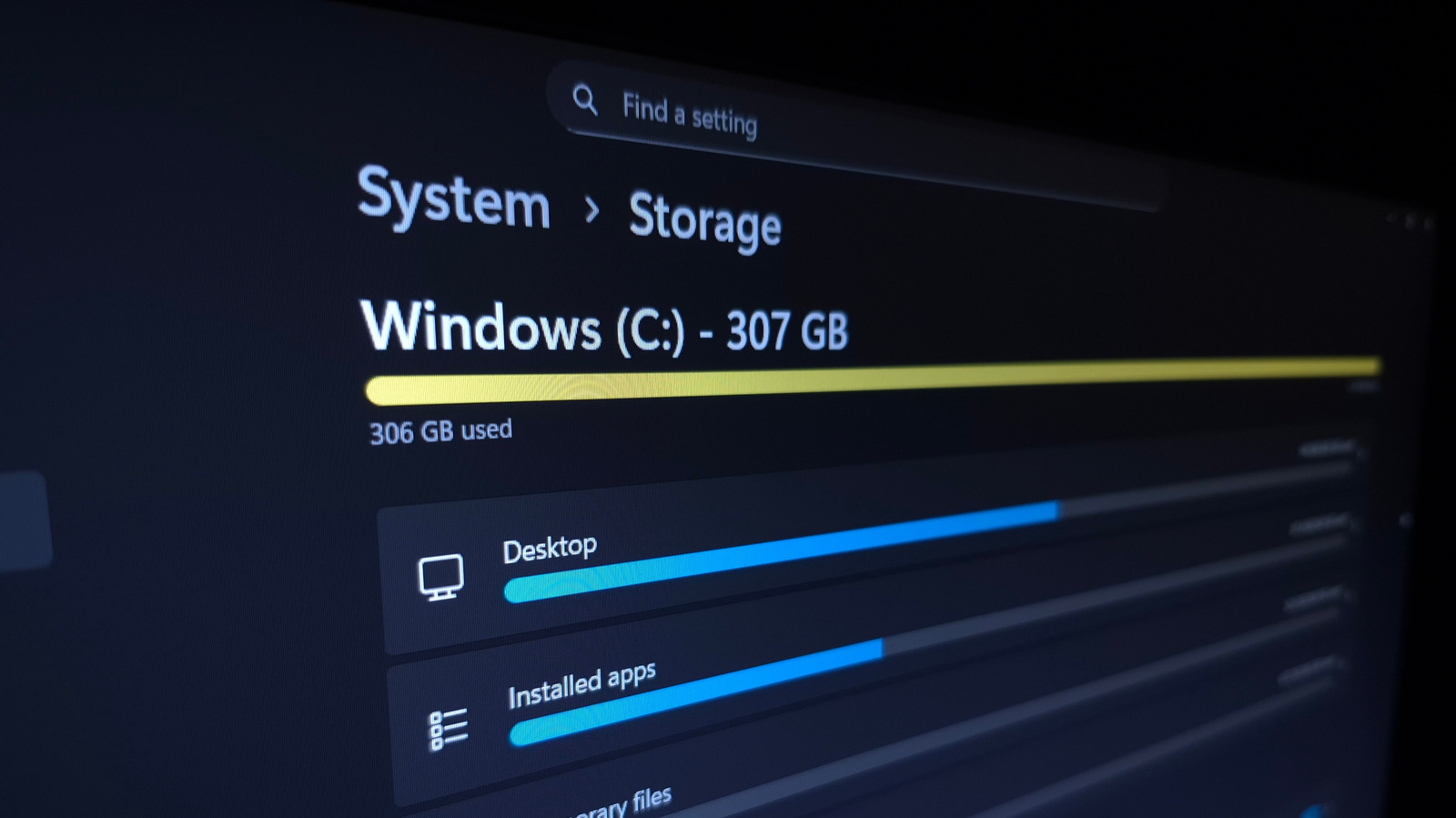
Overview of Windows storage management
Windows storage management begins with Settings > System > Storage, which aggregates usage into broad categories such as Apps, Temporary files, and System & reserved. For most users this high-level view is sufficient, but power users quickly encounter hidden bloat in locations like AppData\Local\Temp or duplicate media files that the native UI does not surface. As Ben Stegner noted on Engadget on September 4, 2026, the built-in tool points to large apps but misses granular file-level data that can consume tens of gigabytes.
Why the built-in view falls short for advanced users
Developers, content creators, and gamers need precise accounting to maintain performance. The native pane groups "Other" files into a catch-all bucket, forcing manual exploration in File Explorer. This friction leads to missed cleanup opportunities and the gradual accumulation of unnecessary data. Moreover, the "Cleanup system files" button only addresses a limited set of caches, ignoring old Windows 10 upgrade files, dormant virtual-machine images, and oversized language packs.
Third-party scanners that fill the gap
Utilities such as TreeSize Free scan an entire volume and present a sortable tree view, listing the largest folders first. When run as administrator, TreeSize reveals protected directories like C:\Windows\WinSxS where component stores can balloon to tens of gigabytes. Users can safely remove orphaned language packs or outdated driver caches after confirming they are not in active use.
Another complementary tool, dupeGuru, locates duplicate files across disparate folders—a common source of wasted space when the same video or image is downloaded multiple times. Both tools are free, open-source, and have low memory overhead, making them suitable for older hardware.
System-level knobs that free gigabytes
Beyond file-level cleanup, Windows exposes knobs that reclaim space with minimal impact:
- Disable hibernation – removes the hiberfil.sys file, which typically occupies ~75 % of installed RAM. Execute
powercfg /hibernate offin an elevated command prompt. - Adjust System Restore quota – reducing the "Max Usage" slider from the default 5 % to 1 % can free several gigabytes, especially on drives that have been in use for years. Users should balance the reduced recovery safety against their backup strategy.
- Delete old Windows update packages – the
dism /online /cleanup-image /startcomponentcleanupcommand removes superseded components after a major update.
External storage strategies
When internal reclamation reaches its limit, external storage offers a cost-effective solution. As of Q3 2026, a 1 TB external SSD averages $80, while a comparable HDD costs $45. Video editors and large-scale gamers can offload archives to an SSD for fast access without overloading the system drive.
Industry perspective
A recent analysis by TechRepublic highlighted the growing importance of efficient storage management in enterprise environments, noting that poorly managed disks can degrade application performance by up to 30 % (TechRepublic, 2026). This reinforces the need for granular tools beyond the default Windows UI and aligns with the observations made by Engadget.
Incentives, risks, and future changes
Microsoft incentivizes users to adopt cloud-based storage through bundled OneDrive plans, which can mask local bloat but also introduce privacy considerations. Disabling hibernation or shrinking restore points reduces on-disk resilience; users must ensure alternative backup mechanisms are in place. Emerging Windows 12 previews promise a "Storage Insights" panel that integrates Linux-side caches from the Windows Subsystem for Linux, potentially exposing new categories of hidden data. Early adopters should monitor these changes to adjust their cleanup scripts accordingly.
Automation opportunities
Developers can leverage the Windows API call GetDiskSpaceInformation combined with PowerShell's Get-ChildItem -Recurse to script automated housekeeping tasks that run via Task Scheduler. By scheduling nightly scans with TreeSize's command-line interface, organizations can maintain a predictable storage footprint without manual intervention.
Helpful resources
By understanding the limits of the built-in storage manager and employing specialized utilities, users can reclaim significant disk space, improve system responsiveness, and defer costly hardware upgrades.
Related coverage
- Builders Stage Disrupt 2026: Practical Strategies for Scaling Startups
- Google Unveils Gemini 3.7 Flash and Gemini 3.5 Transcribe in August 2026
- How Distributed AI Inference Lets Home Servers Earn Revenue